


Look up any store as you browse
The BootLeads Chrome extension shows the profile of the store in your current tab in Chrome's side panel: its platform, contacts, apps and tech stack, products, social following and Meta ads. Sites that aren't in BootLeads yet can be scanned on the spot.
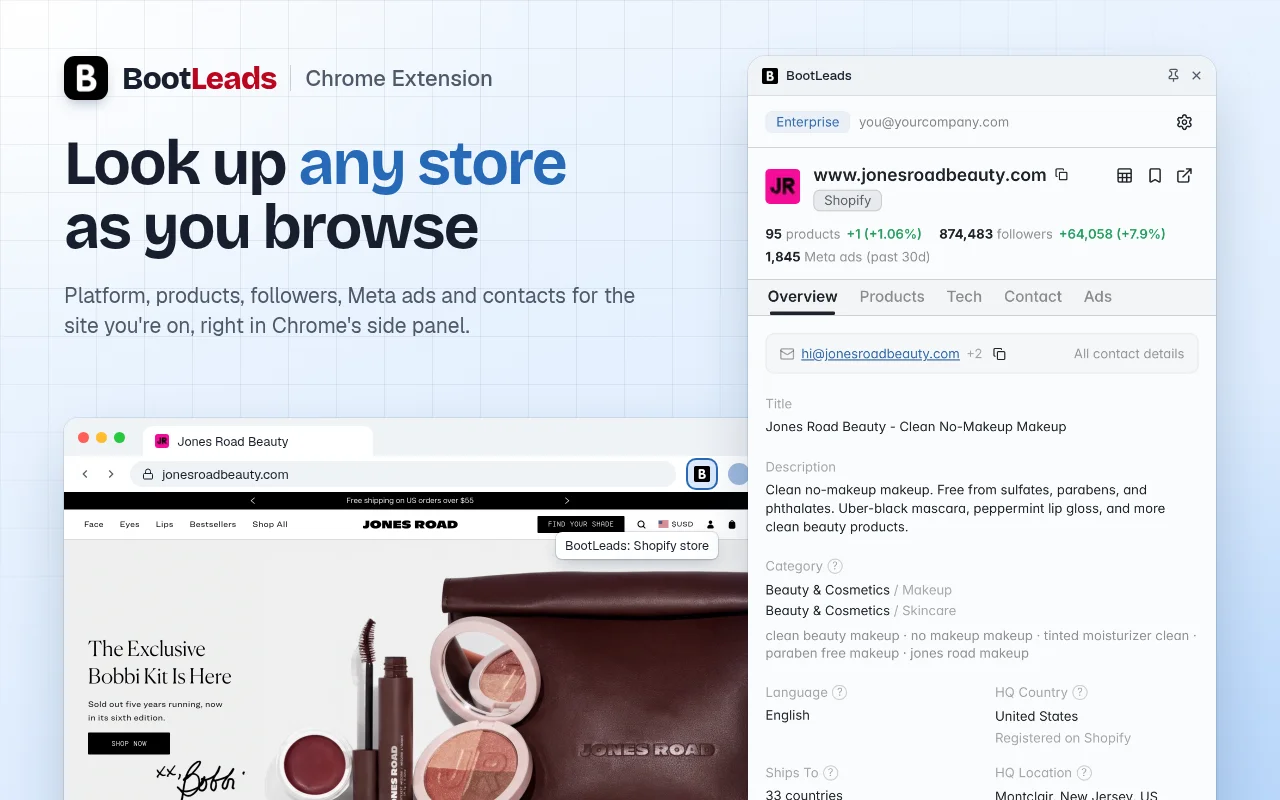
What the side panel shows
Click the toolbar icon on a store's website and the panel opens on its profile. It follows along as you switch tabs.
- Overview
- Category, HQ location, the markets it ships to, domain age and its main contact.
- Products
- Catalog size and how it is changing, average price and the newest products.
- Tech
- Technologies and Shopify apps, including ones removed recently, plus theme and tracking IDs.
- Contact
- Emails with the page each was found on, phone numbers and social profiles with follower counts.
- Ads
- Meta ads from the past 30 days, with the first and last ad seen.
- The toolbar icon lights up on sites that are in BootLeads, so you spot stores while you browse.
- Save a store to one of your lists, or open it in the BootLeads dashboard.
- Copy any value in one click, and reopen the last 50 stores you viewed.
- Open the panel with a keyboard shortcut you choose.
Live Scan sites we don't track yet
When a site isn't in BootLeads, click Live Scan. In a few seconds it detects the platform, technologies, Shopify apps and contact details from the site's homepage and contact page.
- Your browser downloads the two pages without your cookies. BootLeads reads them for the result and doesn't keep them.
- Each site counts once a day toward your Live Scan limit, however often you scan it.
- On paid plans the panel can scan new sites automatically. You can turn this off in the extension's settings.
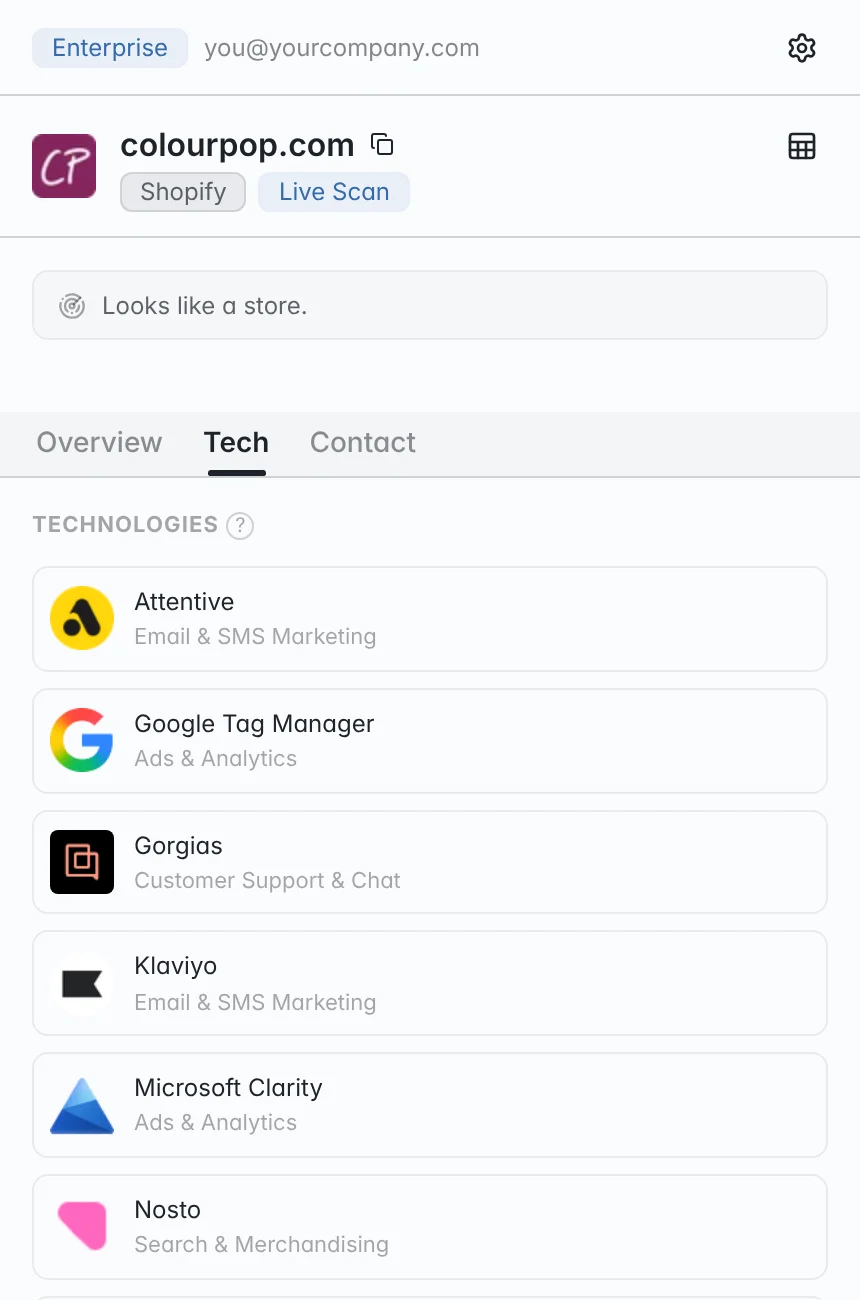
Daily limits by plan
Without an account, the panel shows whether a site is a store and which platform it runs on. Sign in for store profiles and Live Scan, counted per day. A store counts once a day, however often you open it.
| Plan | Store profiles | Live Scans | Contacts |
|---|---|---|---|
| Free | 20 | 10 | Count only |
| Starter | 200 | 100 | In full |
| Pro | 500 | 300 | In full |
| Enterprise | 1,000 | 500 | In full |
What the extension sends
It never reads the pages you have open, your browsing history or anything you type.
- To light up the icon it sends only the site's hostname, never the page address or its content.
- Search engines, webmail, social networks and other sites that are never stores are skipped.
- Store highlighting can be turned off in the extension's settings.
- Live Scan fetches a site's public homepage and contact page without your cookies.
Questions
Is the extension free?
Yes. Installing it costs nothing, and a free BootLeads account includes 20 store profiles and 10 Live Scans a day. Paid plans show contact details in full and raise the limits.
Why does Chrome ask for access to all websites?
The extension needs it to see which site is in your current tab, so it can look that site up in BootLeads, and to download a site's homepage and contact page for Live Scan. It doesn't read the pages you have open.
Which browsers does it work in?
Desktop Chrome 116 or later. It opens in Chrome's side panel, so it doesn't run in Chrome on phones or tablets.
How many browsers can I sign in on?
Up to 3. Signing in on a fourth signs out the one used least recently. Your account settings list each browser and let you sign one out.
Is it the same data as the BootLeads dashboard?
Yes. The panel shows the same store profiles, and stores you save from the panel appear in your lists in the dashboard.
Keep exploring
Look up your next store from the browser
Add the extension, open a store's website and click the toolbar icon.