


Send ecommerce leads to Smartlead
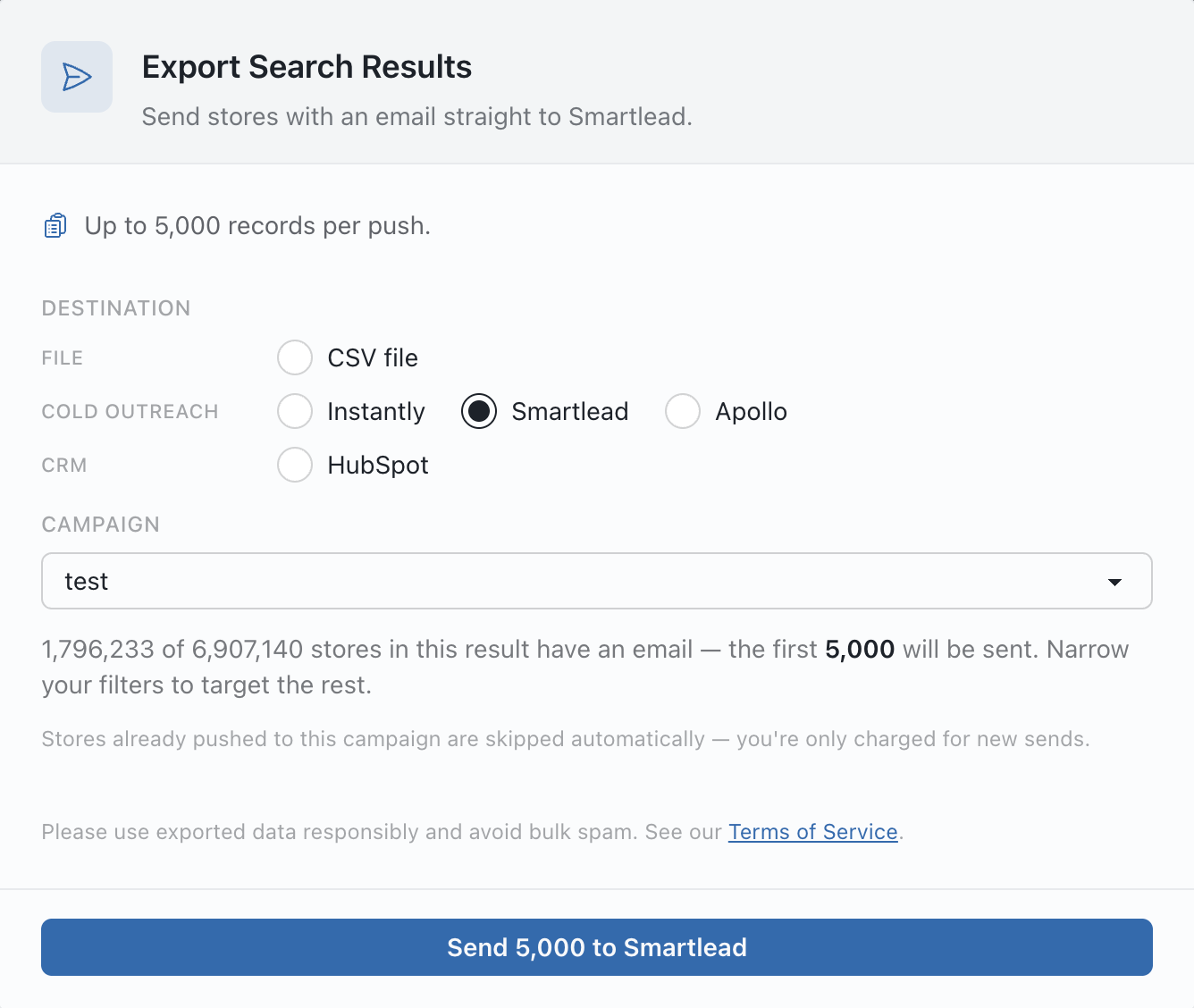
Send every store with an email from a BootLeads search straight into a Smartlead campaign. Company fields and store details stay attached to each lead, and stores you already sent are skipped.
What Smartlead receives
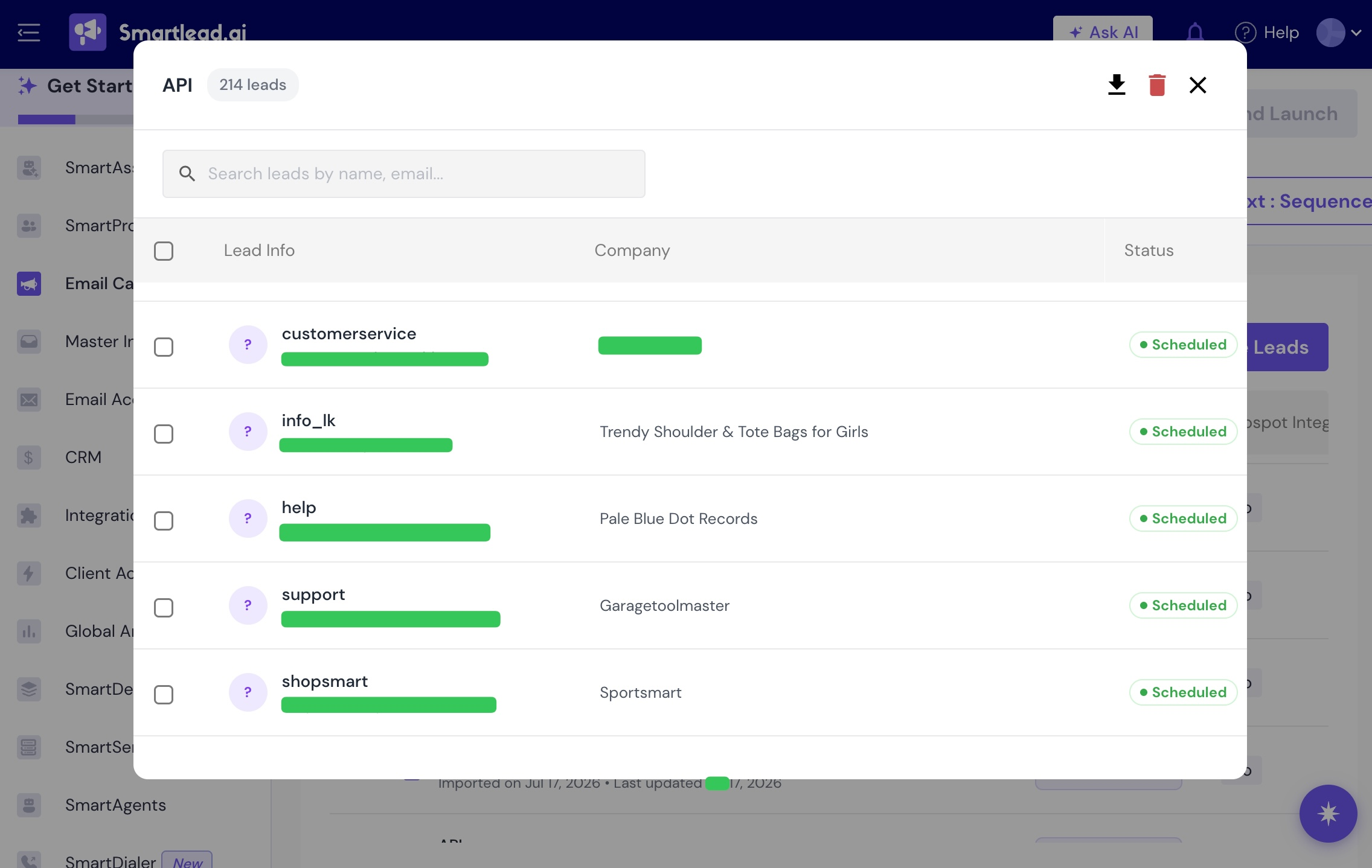
Each store with an email becomes one lead in the campaign you choose. This is what each BootLeads field turns into.
Lead fields
- Business email Email
- Store name Company name
- Store website Website
- Phone Phone number
Custom fields
-
Platform
{{platform}} -
HQ country
{{country}} -
Category
{{category}} -
First seen date
{{first_seen}} -
Product count
{{product_count}} -
Total followers
{{total_followers}} -
Meta ads, last 30 days
{{fb_ad_count}} -
WhatsApp number
{{whatsapp}}
From search to campaign in three steps
Your BootLeads search goes straight into the campaign you choose, with no CSV to download, remap and upload.
-
1
Connect Smartlead
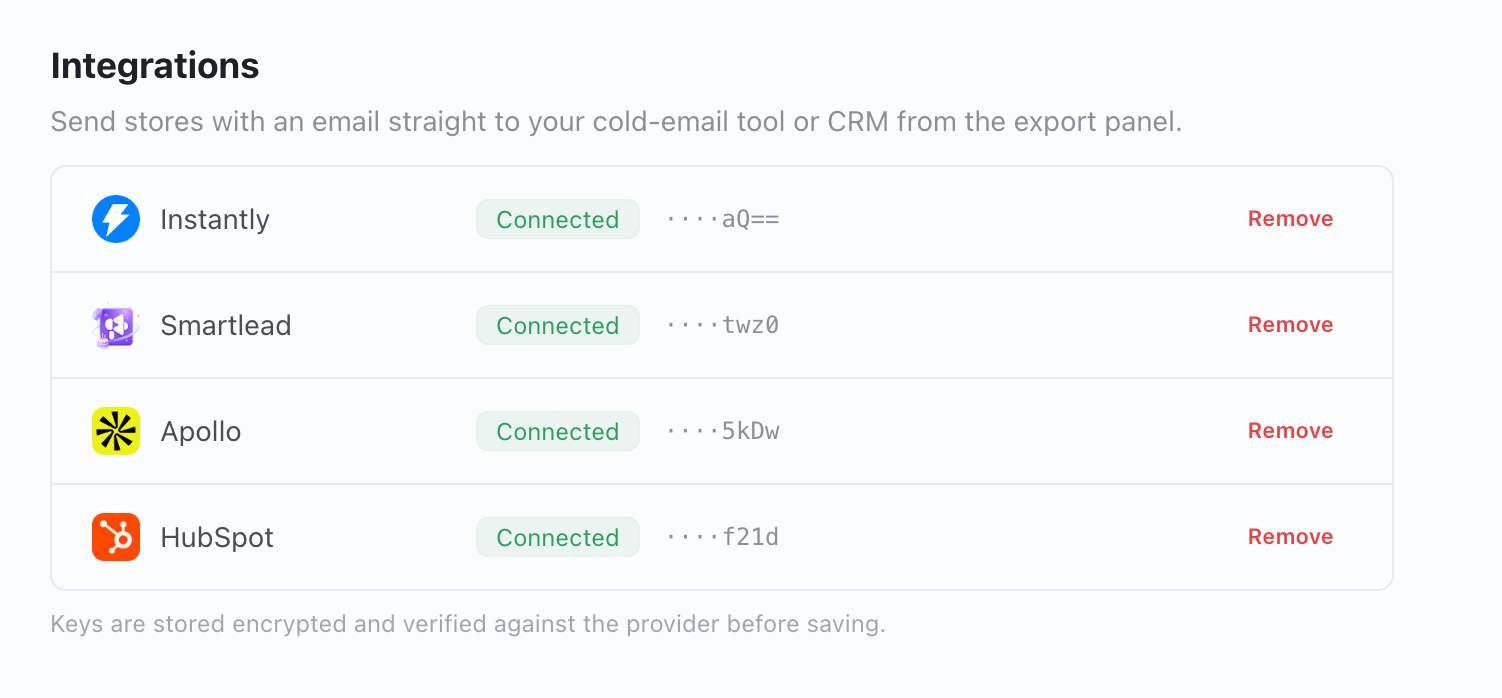
Paste a Smartlead API key into your BootLeads account settings. You only do this once.
-
2
Build the list
Filter by platform, market, category, technology, catalog, ads and contact details, and add Has Email.
-
3
Send to a campaign
Open Export, choose Smartlead and a campaign, check the count and send up to 5,000 stores at a time.
Connect once, pick a campaign each time
Create or copy a key under Settings → API Key Management in Smartlead, then save it in your BootLeads account settings. The key is checked before it is saved and stays masked afterwards.
Open integration settings Smartlead API key guide (opens in a new tab)
After the push
Smartlead takes it from there. The handoff is one way.
- Sequences, sending accounts, schedules and replies stay in Smartlead.
- Nothing syncs back, and BootLeads never launches or resumes a campaign.
- Emails Smartlead flags as invalid, blocked or unsubscribed are marked as failed and not charged.
- Large lists are sent in smaller batches, and your Smartlead lead limits still apply.
Questions before you connect
Where do I find the Smartlead API key?
Open Settings → API Key Management in Smartlead, create or copy a key, and paste it into the integrations section of your BootLeads account settings.
Do I need a Smartlead campaign first?
Yes. BootLeads lists the campaigns in the connected account so you can choose one before sending.
How many leads can I send at once?
Up to 5,000 stores per push, counted against the same record allowance as CSV exports.
What if Smartlead will not connect or finish a push?
If the key is rejected, reconnect with a valid one. If Smartlead says lead credits have run out, fix that in Smartlead and push again without reconnecting. If a campaign is missing, create it in Smartlead and reopen Export.
Which BootLeads plans include Smartlead?
Connecting Smartlead and sending stores to a campaign needs an active Pro or Enterprise plan.
Keep exploring
Other integrations
Related guides
About the data
Send your next ecommerce list to Smartlead
Connect the account, filter the stores that fit the campaign and choose where the list should land.